


.png)
We’re excited to announce that Mutuo Health Solutions’s AutoScribe now offers direct integration with PS Suite (PSS).
This integration makes the AutoScribe workflow inside PS Suite faster and smoother, especially thanks to two big upgrades:
- Single Sign-On (SSO): once enabled, you’ll never need to log in to AutoScribe again.
- More consistent note return: documentation sent back into PS Suite is cleaner and more consistent, reducing manual cleanup and formatting issues.
Why this matters
Every minute counts in a busy practice. By combining AutoScribe’s real-time transcription + note generation with PS Suite, clinicians can:
- Eliminate redundant data entry
- Reduce documentation time (often 4–5 hours per week)
- Improve chart quality with customizable, structured note templates
- Stay more present with patients without “typing through” the visit
Built for Canadian healthcare
AutoScribe was designed with privacy, accuracy, and usability at its core. With the PS Suite integration, those principles remain front and center:
- Canadian-hosted: data stays securely within Canada
- Privacy-first: built to support compliance with Canadian health information requirements
- Security certified: SOC 2 Type II + end-to-end encryption
- Zero data sharing: we never sell or share user or patient data
No complicated workflow. Just less friction between the encounter and the chart.
Who it’s for
This integration is ideal for:
- Family physicians
- Specialists across many disciplines
- High-volume clinics
- Clinicians who want time back—without compromising privacy or documentation quality
Real results
AutoScribe is already used by thousands clinicians across Canada, saving 4–5 hours per week, and enabling up to $45,000 in additional annual billings for some providers (depending on practice and workflow). Now, with PS Suite integration, those gains come with even less friction.
How to get started with AutoScribe on PS Suite
Step 1. Complete the integration request form
Only the Clinic Manager should complete this step. Complete this form and wait for approvals from Mutuo and Telus. There will be waiting period of to 10 days before moving to the next step.
Step 2. Activate AutoScribe in PS Suite. Only the Clinic Manager should complete this step.
1. Go to the Main Toolbar and click Settings > Preferences > Mobile > Integration Management
2. Select AutoScribe from the list and click Configure
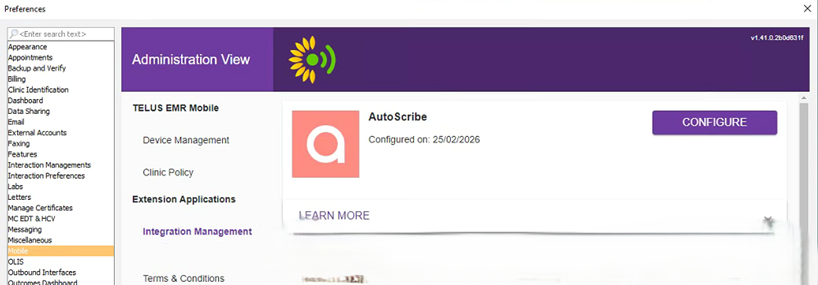
3. Select the Enable Integration Component checkbox
4. Click Save Your Preferences
Step 3. Launch AutoScribe
1. Open a patient chart
2. Click the square icon with an arrow on the far right of your toolbar
3. Select AutoScribe from the extension selector and click Open
4. Sign in to AutoScribe in the new browser window.
Ready to see it in action?
Want to see the PS Suite integration live? Book a free demo or email info@mutuohealth.com.

